

Complete your reviews
Your organization uses C1 to run user access review (UAR) campaigns. You’ll be assigned reviews in C1 to verify that current access is still appropriate and needed. You might be asked to review:- Your own access
- The access of people you manage
- Your colleagues’ access to an application you own
Step 1: Receive a notification
C1 sends notifications by email and in the Slack app or MS Teams app (if enabled) when reviews are assigned to you. Go directly to your reviews by clicking the link in your email or Slack/Teams notification. Or log into C1 and click Reviews, then select the campaign.Step 2: Select how to view your reviews
There are three options, and you can switch between them at any time:- By application: review access to each application in a separate review list.
- By user: review each user’s access in a guided format.
- Unstructured: all your assigned reviews together in one list.
Step 3: Review the access and provide your decision
For each task:-
Review the access
- Look at the account and the resource. Is this access needed for the user’s work and appropriate to the user’s role in the company?
-
Find more information and key insights
- Click the task’s row to open the details drawer, where you can view more information about the access to help you make your decision. The Insights tab contains details such as how many other users in the organization have this access, the risk level of the access, and more.
-
Provide your decision
- Click (Certify) to indicate that this access is needed and appropriate.
- Click (Deny) to indicate that the access isn’t needed or isn’t appropriate, and that you’re recommending its removal.
Step 4: Repeat the process
Repeat these steps to review and take action on each review assigned to you. To take the same action on multiple tasks at once, select your target tasks by clicking each task’s checkbox, then select the action from the menu at the bottom left. You’ll have the chance to add a comment about your action, which is posted on each impacted task. Once you have completed your selections, proceed to Step 5 to finalize your work.Step 5: Finalize and submit your decisions
As you make your selections, your decisions are held in a Pending state. This allows you to review your work as a whole and make any necessary adjustments before finalizing your choices by submitting them.1
Review your pending actions.You can see the number of decisions ready for submission in the summary bar at the top of the screen.Feel free to change any of your choices as you work; your decisions aren’t locked in until you complete the submission step.
2
When you are satisfied with your decisions, click Submit reviews.A summary modal appears, showing the total number of review decisions you’re submitting, and the breakdown of certified and denied reviews. Click Submit to finalize.
3
View the submission log.Once submitted, your decisions are recorded in the campaign’s permanent log. Click the Last submitted on icon at the top of the page to view your submission record.You can continue to submit additional batches of reviews as needed until the campaign is closed.
Review recommendations and insights
C1 provides insights and recommendations to help you complete your reviews. In the list view and in a task’s details view, you’ll see icons drawing your attention to important information about the access under review.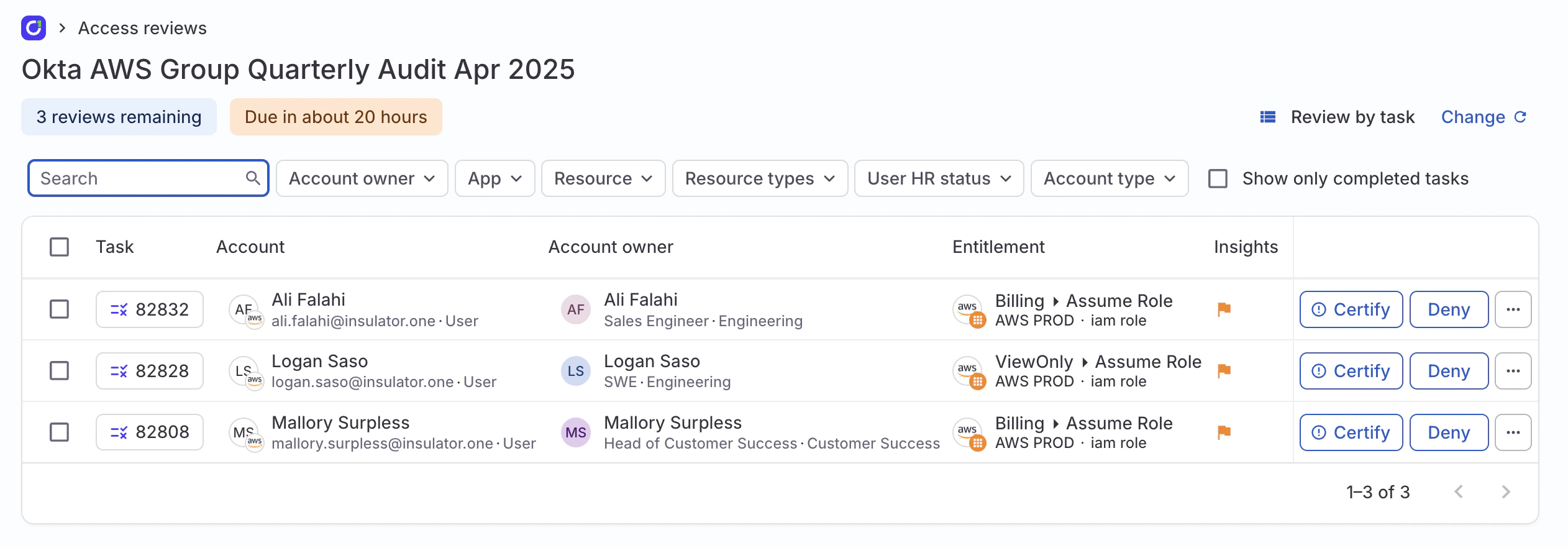
- Take a closer look
- Remove this access
Get agent help reviewing access
The review assistant is an AI agent that understands the context of your current campaign and helps you complete your review tasks.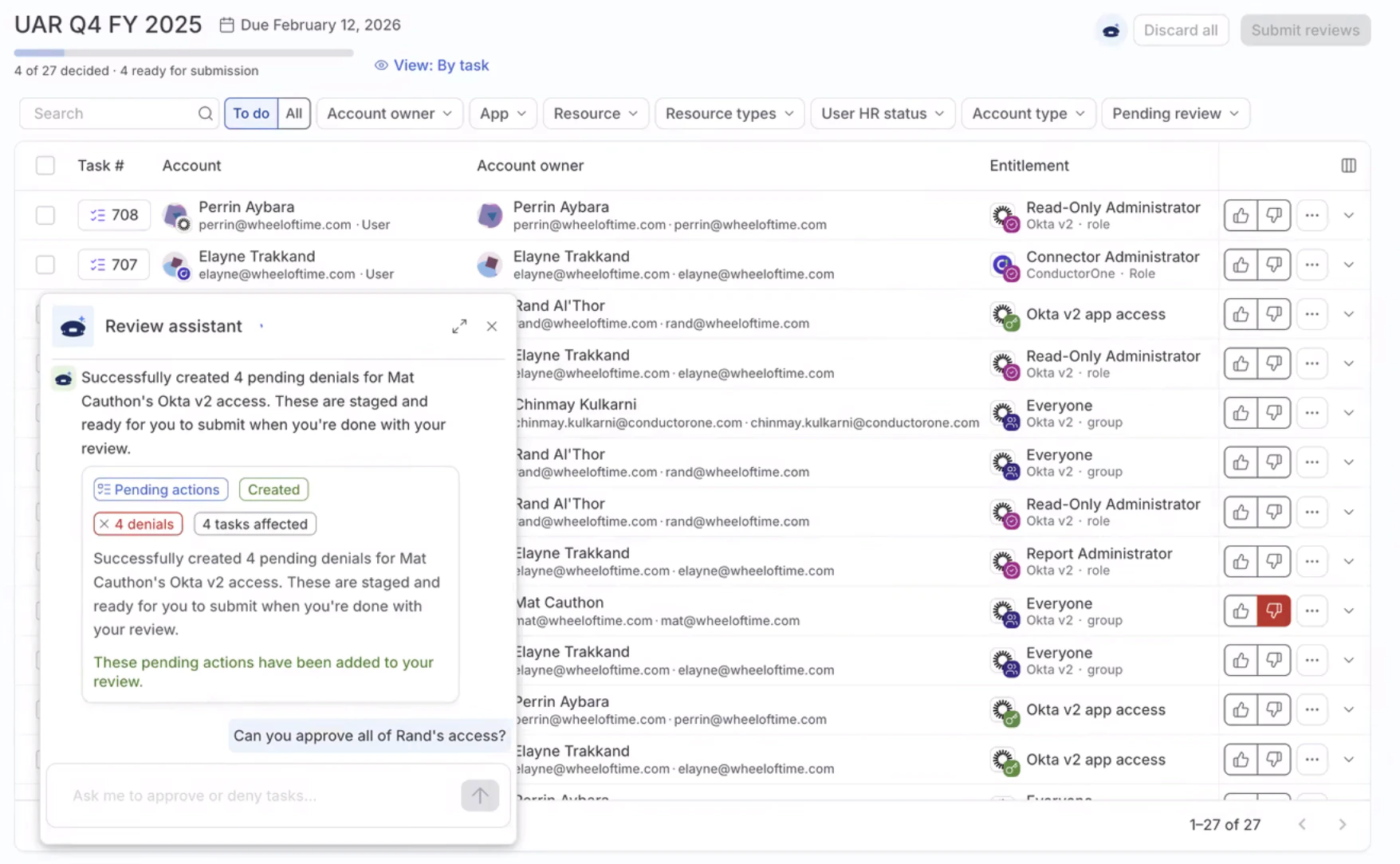
- Approve or deny tasks for specific users: “Approve all tasks for Tress Verdant”
- Act on specific entitlements: “Deny access to the Admin entitlement”
- Follow recommendations: “Approve all tasks with approve recommendations”
- Manage pending actions: “Discard all pending denials”
- Handle bulk operations across multiple reviews: “Leave a comment on all tasks for the Salesforce app”